
Term Search and Navigation Through the Public Catalogue
Searching for terms and navigating through the public catalogue begins on the Homepage, which is also the first menu the user encounters. In addition to the homepage, the top section contains the menus About the Portal, Content Management, , e-Services and Profile.
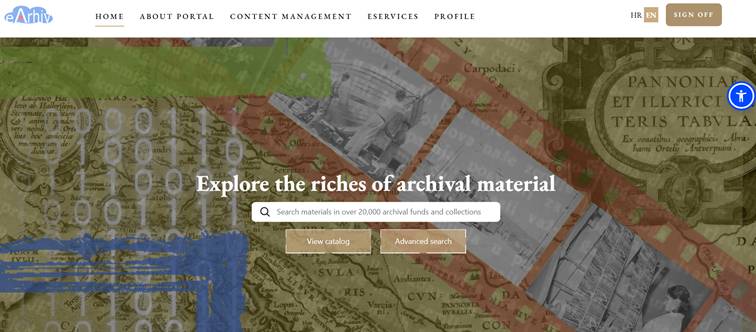
In the upper right corner of the screen, the language can also be changed, with the choice between Croatian and English.
Login to the private part of the portal is also done from the homepage by selecting Login in the upper right corner. By logging in, the user gains access to a wider range of services available in the public catalogue.
At the center of the page is a Search bar designed for searching terms of interest.
Searching the eArchive public catalogue is available to both logged-in users (via NIAS login or user login) and users who are not logged in.
Catalogue search can be performed by entering a term in the search bar, using either the Catalogue Overview or Advanced Search options.
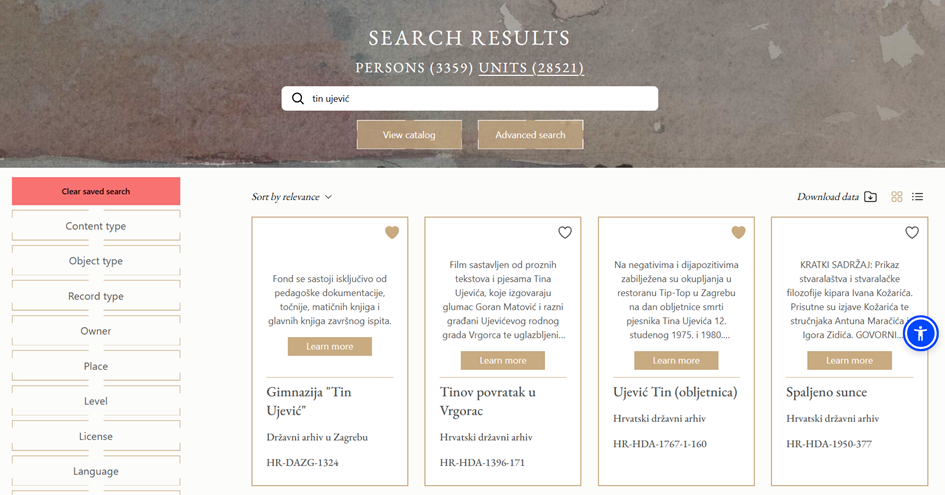
To search, the user enters a general term and initiates the search by pressing the Enter key or the magnifying glass icon. If the term matches any records, the system displays the search results.
Advanced Search
To perform an advanced search, the user must select the corresponding button on the homepage.
The system opens a new screen titled Advanced Search, where the user can enter search parameters. By adding search fields, selecting whether the material is digitally available, and choosing a time period, the search becomes more precise and produces narrower results.
Using the dropdown, the user can search by all parameters (All) or by Title, Person, Language, Script, Holder, Location, Type of Content, Type of Material, or Type of Record.
The logical operators AND or OR allow the user to choose whether to include both parameters or only one in the search.
Available digitally restricts the search to only digital content, while the time filter narrows the time period for the search results.
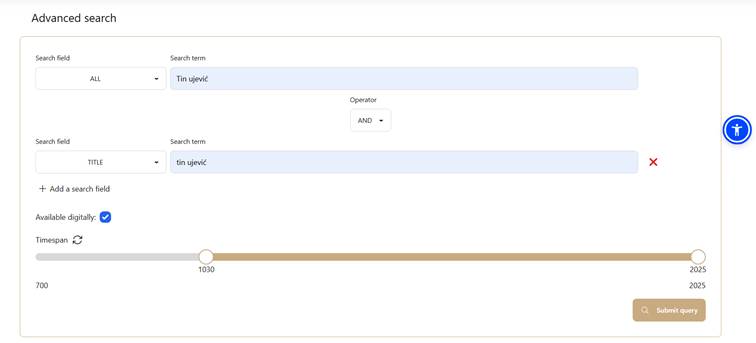
After entering the search parameters, the user clicks the Search button, and the system displays results based on the input.